
Loading organizational chart...
No organizational chart created yet
Start by adding your first root node to build your organizational structure.
{{ editingNode ? 'Edit Node' : 'Add New Node' }}
Complete Guide to Using the Advanced Organizational Chart Tool
Who Benefits from This Organizational Chart Software?
This advanced organizational chart tool is specifically designed for HR professionals, business managers, team leaders, startup founders, and enterprise administrators who need to visualize company structure efficiently. It’s particularly valuable for small businesses scaling their operations, growing companies managing team expansion, remote teams maintaining organizational clarity, and project managers coordinating cross-functional teams. The software serves as an essential business intelligence tool for strategic planning, workforce management, and organizational development.
Step-by-Step Usage Guide
Step 1: Initial Setup and Navigation
Begin by opening the organizational chart tool in your web browser. The interface loads immediately with a clean, professional dashboard featuring an intuitive toolbar at the top. New users will see a welcoming empty state with clear call-to-action buttons. The responsive design ensures optimal viewing on desktop computers, tablets, and mobile devices, making it accessible for remote team collaboration and on-the-go management.
Step 2: Creating Your First Organizational Structure
Click the “Add Root Node” button to create your initial organizational hierarchy. This first node typically represents your CEO, company founder, or department head. The modal form appears with comprehensive fields including name, job title, department selection, and customization options. Fill in the essential details to establish your corporate leadership structure foundation.
Step 3: Advanced Node Customization for Professional Branding
Utilize the extensive customization features to match your company branding. Each node supports:
Custom color schemes aligning with corporate identity
Professional icons representing different roles and departments
Employee photos for personalization and team recognition
Department-specific styling with contrasting colors for visual hierarchy
Text customization ensuring readability and professional appearance
Step 4: Building Hierarchical Team Structures
Right-click any node to access the context menu and select “Add Child” to create reporting relationships. This feature enables you to build complete reporting structures, define management chains, and establish clear reporting lines. The drag-and-drop functionality allows intuitive reorganization as your company evolves through mergers, restructuring, or organic growth.
Step 5: Layout Optimization and Visualization
Toggle between vertical and horizontal layouts using the layout switch in the toolbar. The vertical layout suits traditional corporate hierarchies, while horizontal viewing benefits flat organizational structures and matrix organizations. Adjust node spacing using the settings panel to optimize for team size and department complexity.
Step 6: Advanced Search and Navigation
Use the powerful search functionality to quickly locate specific team members, roles, or departments within large organizations. The real-time highlighting feature helps HR managers and team leaders efficiently navigate complex organizational structures during workforce planning and talent management activities.
Step 7: Data Management and Auto-Save Features
The tool automatically saves your work every 20 seconds, ensuring no data loss during extended editing sessions. Manual save options provide additional security for critical organizational data. The reset function allows complete restructuring when implementing major organizational changes or strategic realignments.
Step 8: High-Quality Export and Sharing Capabilities
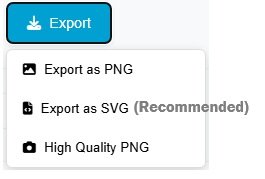
Access the export modal to generate professional-quality organizational charts in multiple formats:
SVG Export – Perfect for presentation materials, company websites, and scalable vector graphics needs. This format maintains perfect quality at any size, ideal for executive presentations and board meeting materials.
PNG Export – Excellent for digital documents, internal wikis, and HR software integration. Choose from three quality levels (Standard, High, Ultra) to balance file size and clarity for your specific use case.
Step 9: Team Collaboration and Implementation
Share exported charts through your preferred collaboration platforms like Slack, Microsoft Teams, or email. The visual nature of the charts enhances team communication, clarifies reporting relationships, and supports onboarding processes for new employees.
Step 10: Ongoing Maintenance and Updates
Regularly update your organizational chart to reflect personnel changes, promotions, and departmental restructuring. The intuitive editing interface makes maintenance quick and efficient, ensuring your organizational visualization remains current and accurate.
Key Features for Different User Types
For HR Professionals and Recruiters
Streamlined onboarding processes with clear reporting structures
Talent management visualization for succession planning
Compliance documentation for organizational reporting
Recruitment planning based on current team structures
For Business Owners and Executives
Strategic planning with visual organizational design
Growth tracking through evolving company structures
Management oversight of team hierarchies
Investment planning based on organizational needs
For Team Leaders and Managers
Team structure clarification for project planning
Resource allocation based on reporting lines
Performance management within organizational context
Cross-functional collaboration mapping
For IT and Operations Teams
Access management based on organizational hierarchy
System permission structures aligned with reporting lines
Business process mapping through organizational relationships
Disaster recovery planning with clear responsibility chains
Best Practices for Organizational Chart Management
Regular Updates and Maintenance
Schedule monthly reviews to ensure your organizational chart reflects current reality. Update immediately following organizational changes, new hires, or role adjustments to maintain accuracy for decision-making and planning.
Strategic Visualization Planning
Consider creating multiple charts for different purposes:
Executive-level charts showing high-level structure
Department-specific charts for team management
Project-based charts for temporary organizational structures
Geographical charts for distributed teams
Integration with Business Processes
Incorporate organizational charts into your standard business procedures:
New employee orientation materials
Performance review processes
Succession planning documentation
Emergency contact hierarchies
This comprehensive organizational chart tool provides enterprise-level functionality with intuitive usability, making professional organizational visualization accessible to businesses of all sizes. The combination of powerful features and straightforward operation creates an essential tool for modern business management, strategic planning, and organizational development.